Everything from signing up to your financial statements, in the order you will do it. Tick each step when you finish it. In the app, the category to choose is Beauty Salon.
Create your account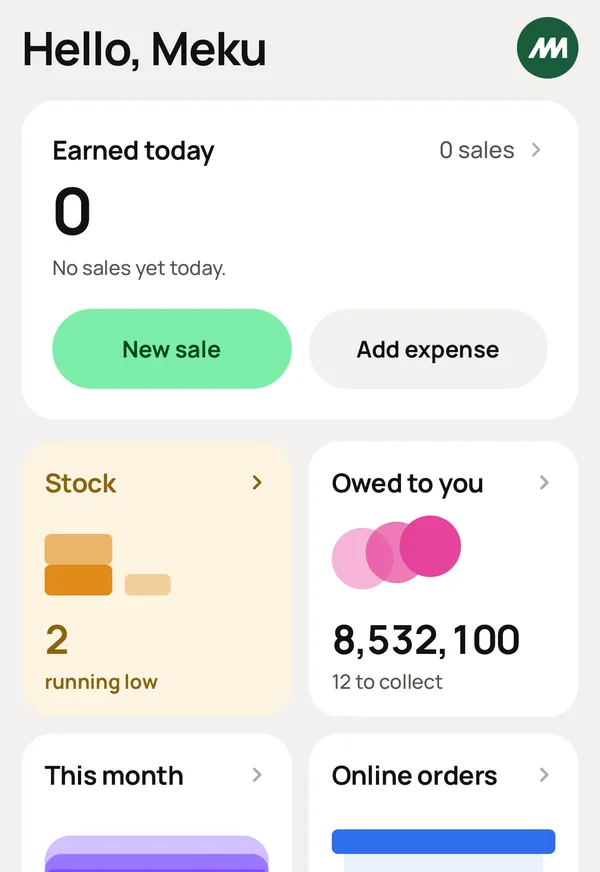
Open Meku Business.
Sign up with your name, phone and email, or tap Google or Apple.
Enter the code we send to your phone. You are now logged in.
Now the business. Type the business name, then a username. The username is the short name customers use to find you. Add the business phone and email.
Choose what kind of business you run. Search Beauty Salon and tap it. It asks if people book you for a date. Say Yes if you take appointments, and No if customers only walk in.
The app opens on Home. Your salon is on Meku.
Go to Settings → What you sell. If you take appointments, turn on Bookings. Leave the rest off.
While you are in Settings, open Business profile and set the end of your financial year. Then open Company details and add your registered name and TIN, if you have them. They are printed on your accounts later.
Account is where the money from your business stays when you sell a product or a service. It is also where the money leaves when you make an expense or a purchase.
Go to Account and tap Add account.
Create CASH. Type how much cash you have in hand right now. Save.
Create VODA LIPA, TIGO LIPA, or whichever Lipa namba you use. Type how much is in it right now. Save. If you use more than one, create each one.
Do you get paid into a bank account? Create it the same way: NMB, the current balance, then save. Create one account for every place where your money stays.
This is what gives you correct balances. When a customer pays you with cash, Meku adds it to CASH. When you buy something with your Lipa namba, Meku deducts it. Your balances are always correct, and you never have to check them by hand.
Go to Inventory and tap Add.
Name, price, what it cost you, how many you have.
For a treatment or a haircut, set how many you have to 999, so it never finishes. For a product on the shelf, type how many you have.
Start with your treatments, then the products on the shelf. Add the rest later, when you have time.
Do you already have a spreadsheet? Tap Import instead.
Go to Contacts → Suppliers and add who you buy from.
Add their name and contact details. Save.
At the home page, tap New Sale.
The product list appears. Tap the product, or scan it.
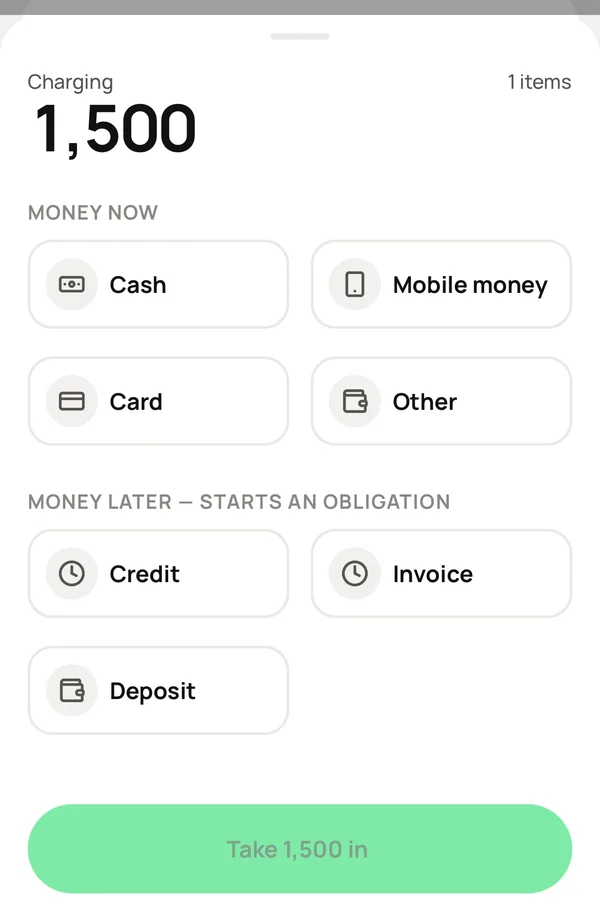
Choose how the customer pays.
DIRECT TO ACCOUNTS — Cash, Bank, Lipa. Your accounts appear here.
PAYMENT LATER — Credit, Lipa kidogo kidogo, Invoice & more.
Tap Charge.
Now look. Home shows today's sales. Account shows the new balance. Inventory shows that the stock has gone down. If it was credit, Debts shows the debt with the customer's name on it.
You typed it once.
The customer will pay at the end. Make the sale as normal, then under PAYMENT LATER tap Open bill and type a name, such as Chair 2. Tap Charge.
If they order again, sell it under the same name. Each order is saved as its own sale, so nothing is left open on your phone.
Open Debts → Open bills to see every chair that has not paid yet, and tap one to see the bill with every order and its items. It says BILL, not receipt, because nobody has paid yet.
When they pay, tap Close bill and choose the account the money went into. The whole bill is paid at once.
If people pay separately, untick the orders this person is not paying for. Meku calculates what is left.
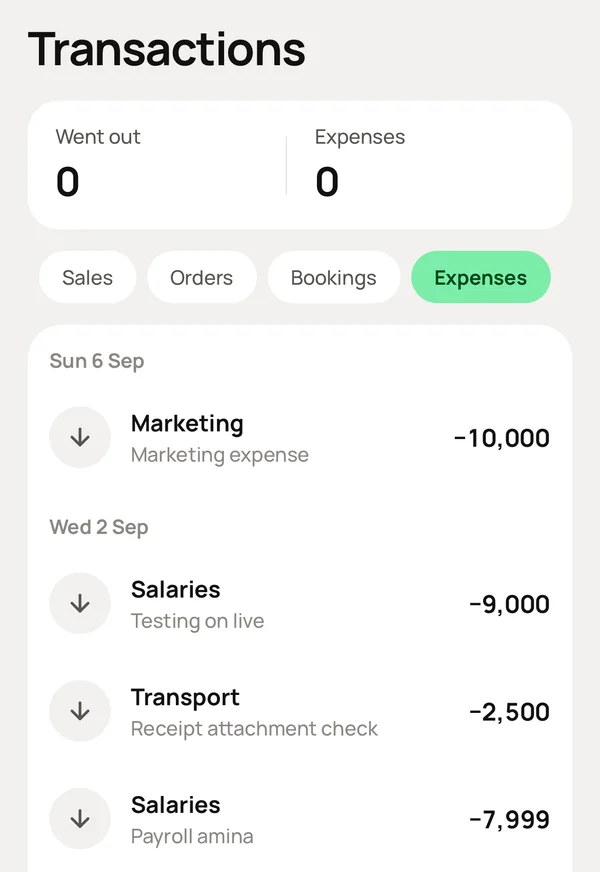
At the home page, tap Add Expense.
Enter the amount, select the category, and write anything important about that expense. Save.
For the bills that come every month, such as rent, salaries and licences, go to Automations and set each one up once. Meku records them on the day they are due. You never type them again.
When stock arrives, go to Inventory → Purchases and tap Record a purchase.
Select the supplier, add what you received and what it cost, and say whether you have paid. Save.
The stock is added. If you paid, the money leaves the account. If you have not paid, Meku keeps it under Debts → Suppliers until you pay.
Go to Inventory → Stock. You see every product, and how many are left.
Tap About to finish to see what you need to order again.
Meku also warns you in Inbox before the stock finishes. On each product, Warn me at is the number that starts the warning.
If you counted the shelf and it does not match the app, open the product and tap Adjust.
Type what is actually there and choose the reason: Miscount, Damaged or Lost or stolen. Save.
Meku records the difference, so the shelf and the app agree again, and the loss shows in your records.
When creating a new sale, select Credit. Choose the customer, or create them. Save.
When this customer pays, record it in Debts and Meku deducts it from their debt.
Meku also sends this customer automatic SMS reminders, so they do not forget to pay you.
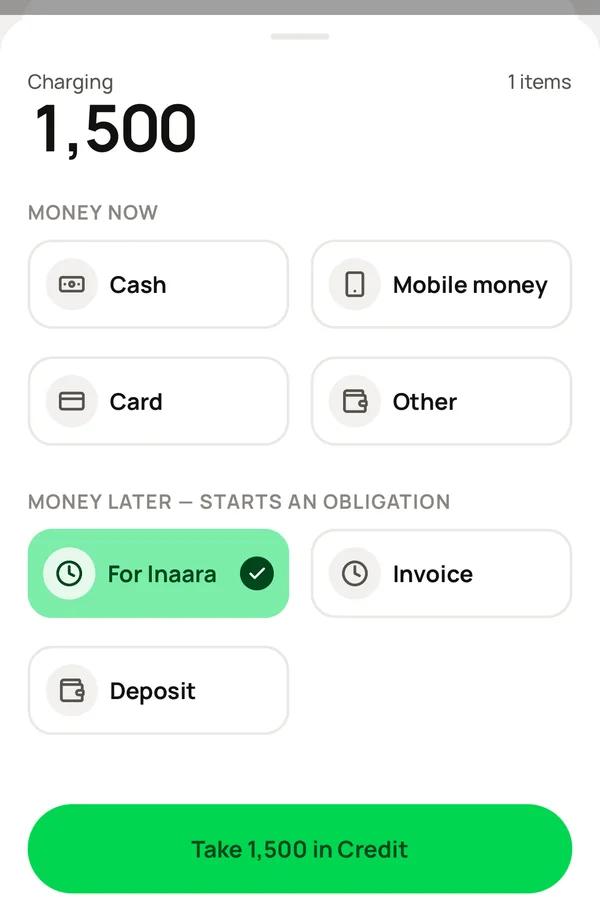
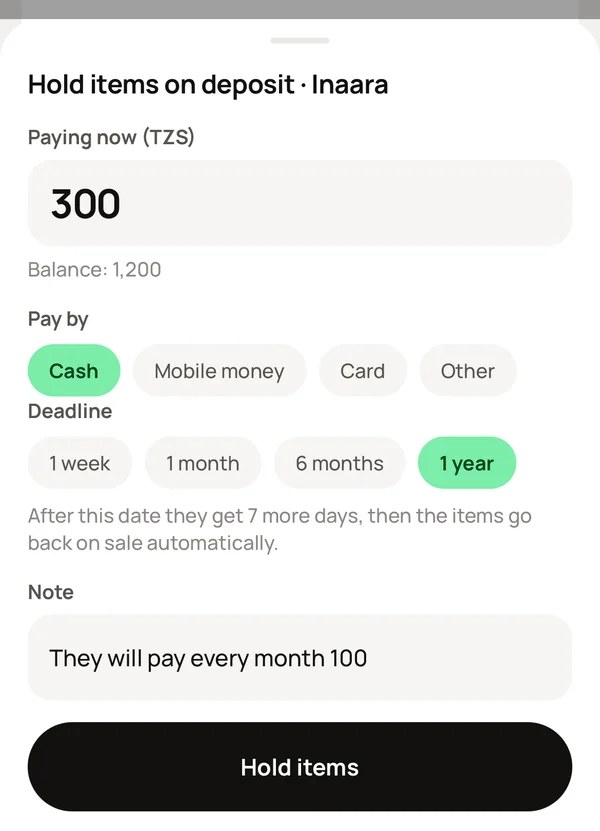
When creating a new sale, select Lipa kidogo kidogo. Choose the customer, enter the first payment and which account it went into. Save.
Meku keeps the item for them. Record each payment in Debts until it is fully paid. Then the customer can collect it.
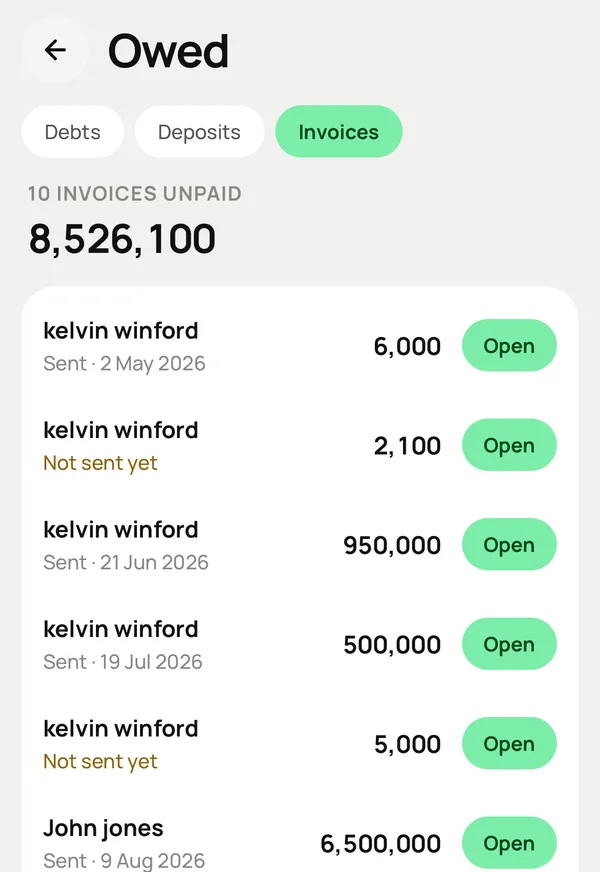
When creating a new sale, select Invoice. Choose the customer. Save.
Meku sends the invoice to their email as a PDF with your business details on it.
When they pay, mark it as paid in Debts and choose which account the money went into.
Go to Financing and tap Add.
Enter who lent it, how much, when, and which account the money went into. Choose the terms. Save.
Meku keeps it as a loan, not as income. When you repay, record it on the loan. Meku separates the interest from the loan itself for you.
Did you buy a fridge, furniture or a motorbike? Go to Assets and tap Add.
Enter what it is, what it cost, when you bought it and which account paid for it. Save.
Meku keeps it as something the business owns, not as money that disappeared, and follows its value over time.
Go to Account, open CASH and tap Count it.
Type what is in the cash box. Meku shows you what should be there and records the difference.
To check the whole day, open Today's cash from Sell. Each account the cash box received money into, such as CASH, your Lipa namba and the bank, shows what was sold, what was collected and what was refunded. Type what each one actually shows and tap Confirm and close. Meku keeps any difference.
Do you keep more than one cash box? On the web app, open Today's cash → Manage cash boxes, add each cash box, and choose the staff who work on it. Everybody else stays on the shared cash box.
Did you take the cash to the bank? Go to Account and tap Move money.
Choose from CASH to NMB, and the amount. Save. Both balances are updated.
Go to Account and tap Take money out.
Enter the amount and which account. Save.
Meku records it as money you took for yourself, not as a business expense, so your profit stays correct.
Go to Staff → Access and invite them with a link.
Staff see only what you want them to see.
Every sale and expense shows the name of the staff who made it. If several people share one login at the counter, turn on Ask who served under Settings → What you sell, and the POS asks who served.
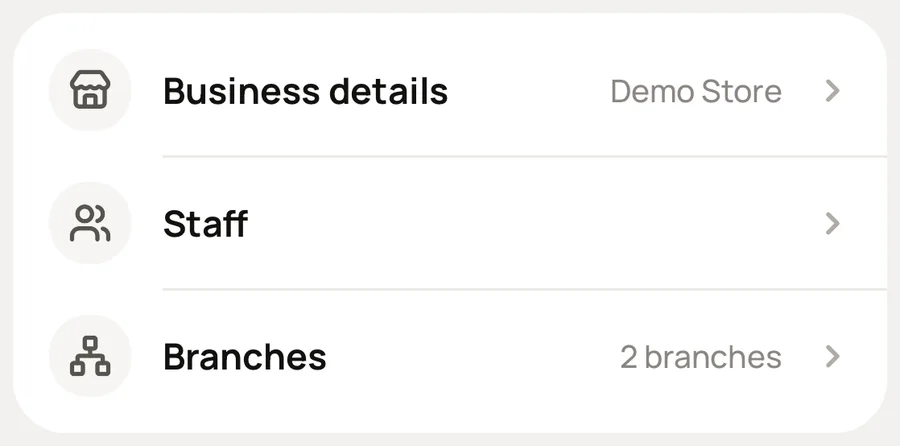
Not everyone who works for you uses the app. Go to Employees and add them: the cook, the cleaner and the driver, as well as the cashier.
Name, phone, ID number, and who to call in an emergency. Save.
Set their salary from a date. If you give a salary increase later, it is a new line, not a change, so last month's salary stays last month's salary.
If you give someone part of their salary before payday, record it as a salary advance. Meku keeps it as money they owe the business, and takes it back from their salary.
If something happens at work, write it down under Incidents. Money taken from a salary is a separate entry, so the record of what happened stays only a record.
Link a staff to their login on their record, and every sale they make shows their name without the POS asking.
At the end of the month, go to Employees → Payroll and tap Build a draft.
Meku prepares it from the records: who is paid, their salary, what was added, what was taken off, their salary advance, and what they receive. No money has moved yet.
Fill in PAYE and NSSF. Check the rest.
Tap Approve. On the pay date, Meku records the cost, pays the money from the account you choose, and reduces the salary advances. Everyone's salary slip is ready.
Once the money is paid, this cannot be undone, so Meku shows you everything it will do before you press it.
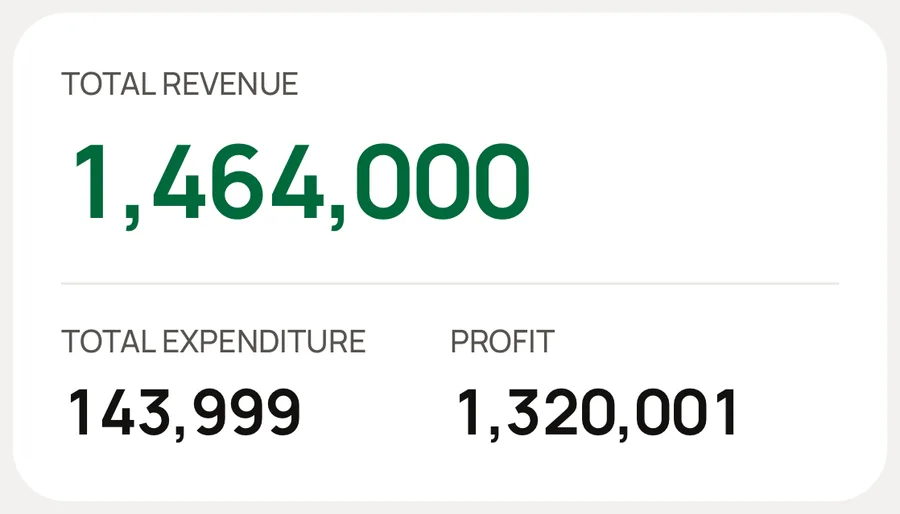
Go to Reports → Profit.
Sales, less what you bought, less what you spent, for today, this month, or any dates you choose.
Your months close automatically.
Go to Reports → Financial statements.
Meku turns everything you have recorded into your accounts for the year: the statement of profit or loss, the statement of financial position and the cash flows, in the format your auditor uses.
This makes tax time simple. Your auditor gets the data they need for the filing and the assessment, already organised, instead of building it from receipts and a notebook. Print it, or send it.
Create your account, choose Beauty Salon, and tick the steps above when you finish each one. The Free plan needs no card and has no time limit.